QR how-to guide
Importing QR codes from CSV
Bulk import is a panel workflow for creating dynamic codes from a file. The import preview validates the file before creation; it does not turn the operation into an atomic transaction.
Use demonstration data while learning the flow. Do not put passwords, access tokens, or unrelated personal data in an import file.
Prepare the CSV file
The file must be valid UTF-8, use commas, and start with the exact header destination_url,fallback_url,name. It has three columns and accepts up to 100 data records, within the file-size limit shown by the import workflow.
- Create a UTF-8 CSV with destination_url,fallback_url,name as the first row.
- Add one destination, fallback, and name value per data row.
- Keep the data rows at or below 100 and select the file in the panel.
- Read the preview before asking the panel to create codes.
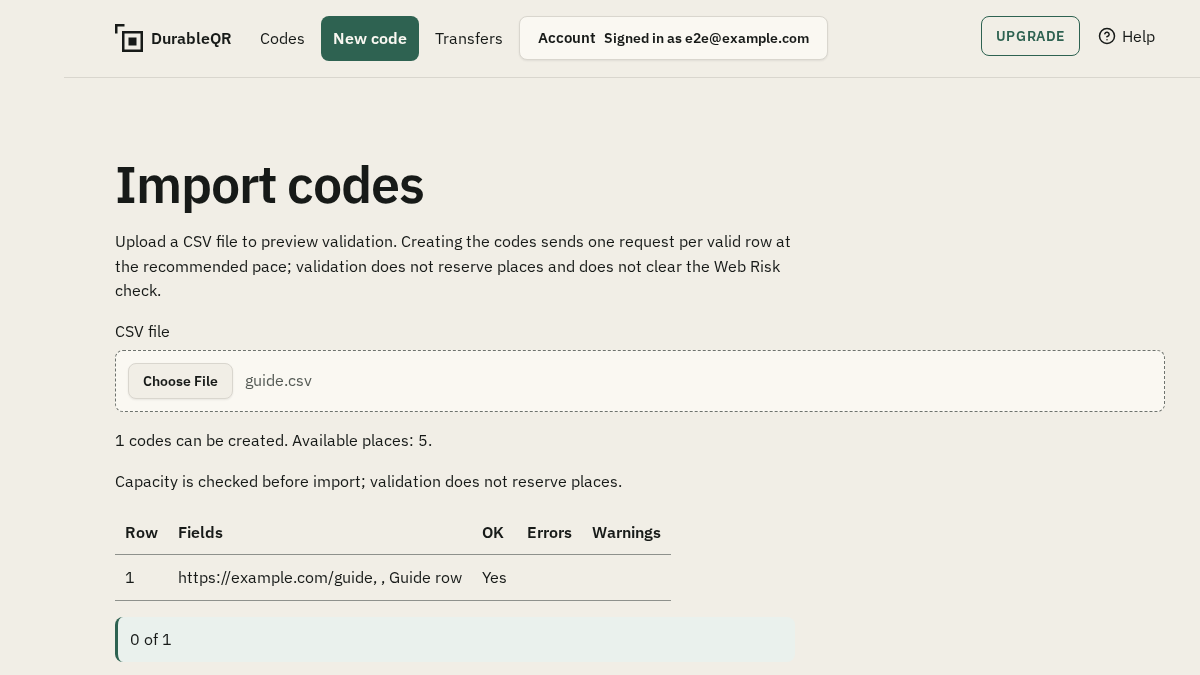
Read values, errors, and warnings
The preview shows parsed values and reports errors or warnings before creation. Correct the file when a header, column count, encoding, or row value is rejected. A successful file preview is not the same as every later request succeeding.
Expect partial results
Creation proceeds row by row. The result can contain created rows and rejected rows, and stopping does not undo requests already sent. The workflow is not atomic and it does not promise resume after a reload, so record the result before retrying.
Frequently asked questions
What is the exact CSV header?
Use destination_url,fallback_url,name with those three columns, in that order, separated by commas.
Does the import preview show a transaction diff?
No. It shows parsed values plus errors and warnings before creation. It is not a diff of updates to existing codes and the creation workflow is not atomic.
What happens when some CSV rows fail?
The result can contain successes and rejected rows. Requests already sent are not undone automatically, so keep the row-level result before correcting and retrying.