Machine translation without native-speaker review. The English version is binding. · Deutsch English
QR how-to guide · Deutsch
Using colours and a logo · Deutsch
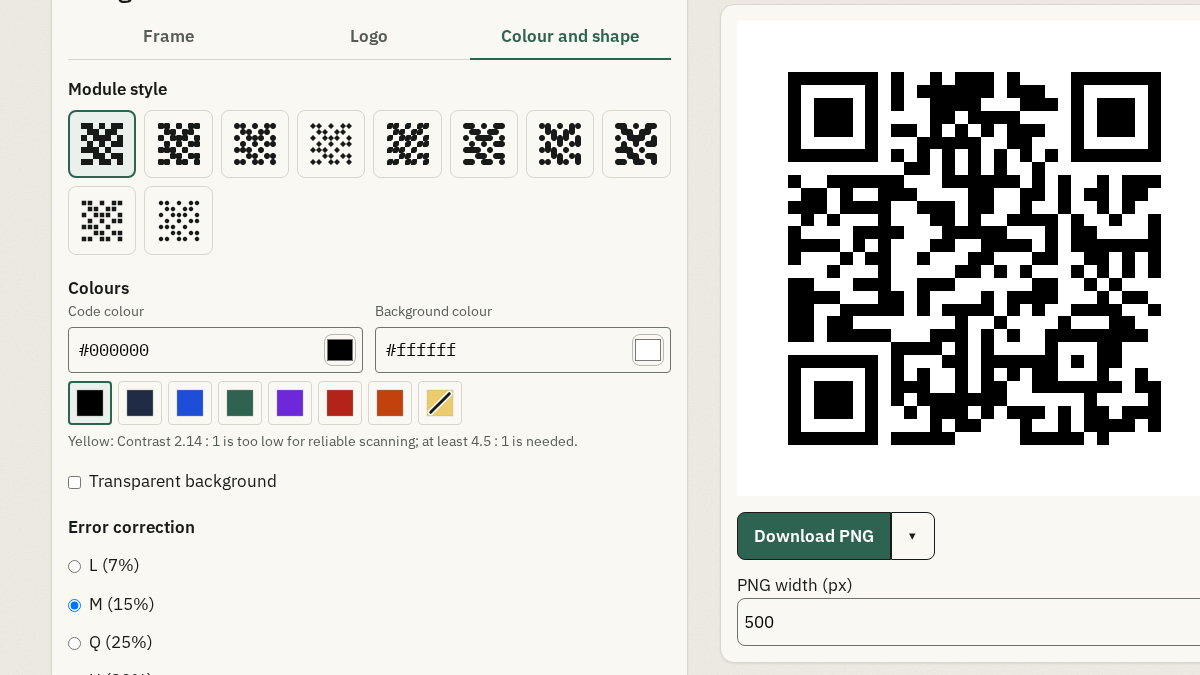
A styled QR code still needs a clear contrast relationship between its modules and background. DurableQR checks contrast in the generator, but that check does not replace a test on the material and in the light where the code will be used. · Deutsch
A logo changes the available error correction level and the usable design area. Treat the logo as part of the symbol, not as a guarantee that any amount of it can cover modules. · Deutsch
Start with contrast and a light background · Deutsch
Keep the foreground distinct from the background and inspect the warning shown by the generator. A light background gives the modules a clearer field; glare, texture, and low light can still change the printed result. · Deutsch
- Choose a dark foreground and a light, non-reflective background. · Deutsch
- Use the generator contrast check before opening the download panel. · Deutsch
- Inspect the preview at the intended output size. · Deutsch
- Scan a physical sample under the expected lighting. · Deutsch
Add a supported logo · Deutsch
The generator accepts PNG, JPG, or GIF raster logos up to 2 MiB, or SVG logos up to 256 KiB. Use a simple mark with enough empty space around it and inspect the resulting symbol. · Deutsch
Adding a logo selects error correction level H. That is a QR encoding level, not a statement that 30% of the visible code may be covered. · Deutsch
Verify the physical print · Deutsch
Download the intended format, print a sample, and scan it from the distance and angle people will use. If the sample is difficult to read, simplify the colours or logo before printing the full run. · Deutsch
Frequently asked questions · Deutsch
What background works best for a QR code? · Deutsch
Use a light, even, non-reflective background with clear contrast against the modules. Test the actual material and lighting before the full print run. · Deutsch
Does a logo mean I can cover part of the QR code? · Deutsch
No. A logo selects error correction level H, but it does not define a safe covered surface. Keep the symbol clear and verify a physical sample. · Deutsch
Why does the generator warn about my colours? · Deutsch
The foreground and background do not meet the generator contrast rule, or the selected design creates another conflict. Choose clearer colours and check the preview again. · Deutsch