QR how-to guide
Editing a dynamic destination
A dynamic code points at a managed DurableQR address. Its account owner can edit the destination after printing while the printed symbol stays the same.
A static code is different: its payload lives in the symbol and changing the data means creating and printing a new code.
Open the code and edit it
Sign in to the account that manages the code, open its details, and start the destination editor. The form keeps the current destination and fallback separate.
- Open the code details from the codes list.
- Enter and validate the new destination URL.
- Set, change, or remove the fallback separately.
- Save and wait for the confirmed result before closing the details view.
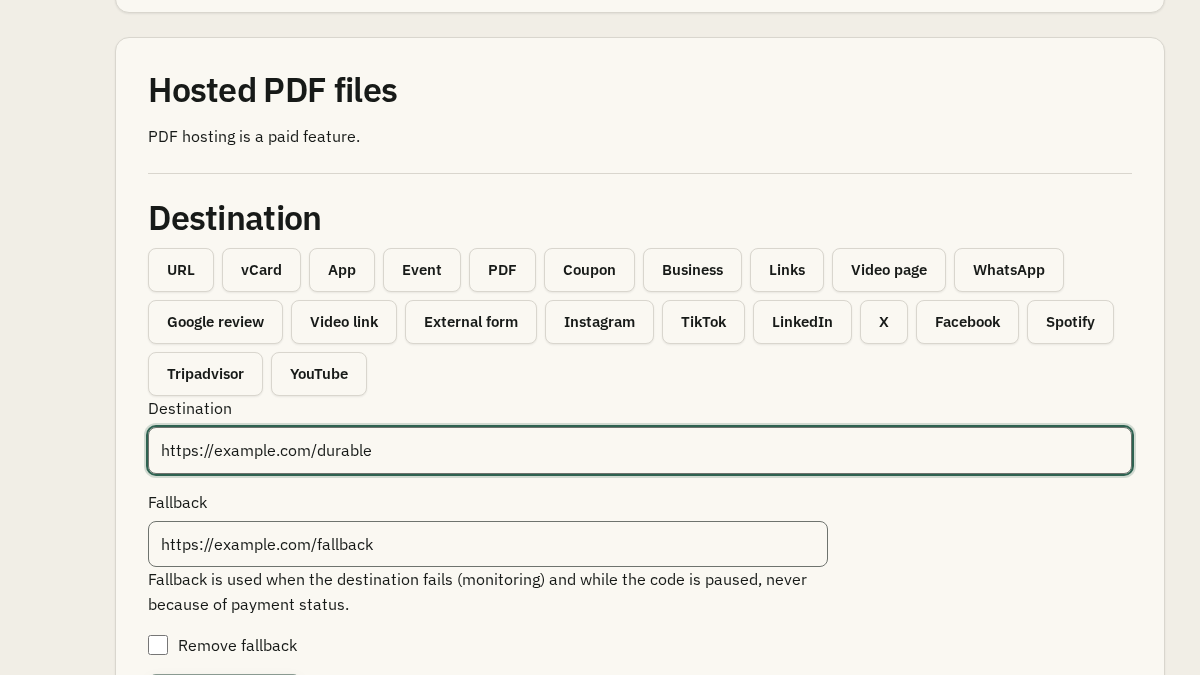
Use destination and fallback history
The saved destination is the normal target. A fallback is a separate address used when the code is paused or the service state requires the fallback behaviour. Open history to review earlier versions before choosing an action.
Confirm a rollback
A rollback creates a new current version from an earlier destination after confirmation. It is not an edit to a static code and it does not silently resend a failed mutation. If the code state or a conflict prevents the change, read the notice and reload the current details.
Frequently asked questions
Can I edit a static QR code after printing?
No. A static code stores its payload in the symbol. Create and print a new code when that data changes.
Is fallback the same as the destination?
No. The destination is the normal target; fallback is a separate address used by the code’s documented fallback behaviour.
What does rollback do?
After confirmation, rollback creates a new current version using an earlier destination from history. It does not rewrite the printed symbol.