QR how-to guide
Choosing a QR file format
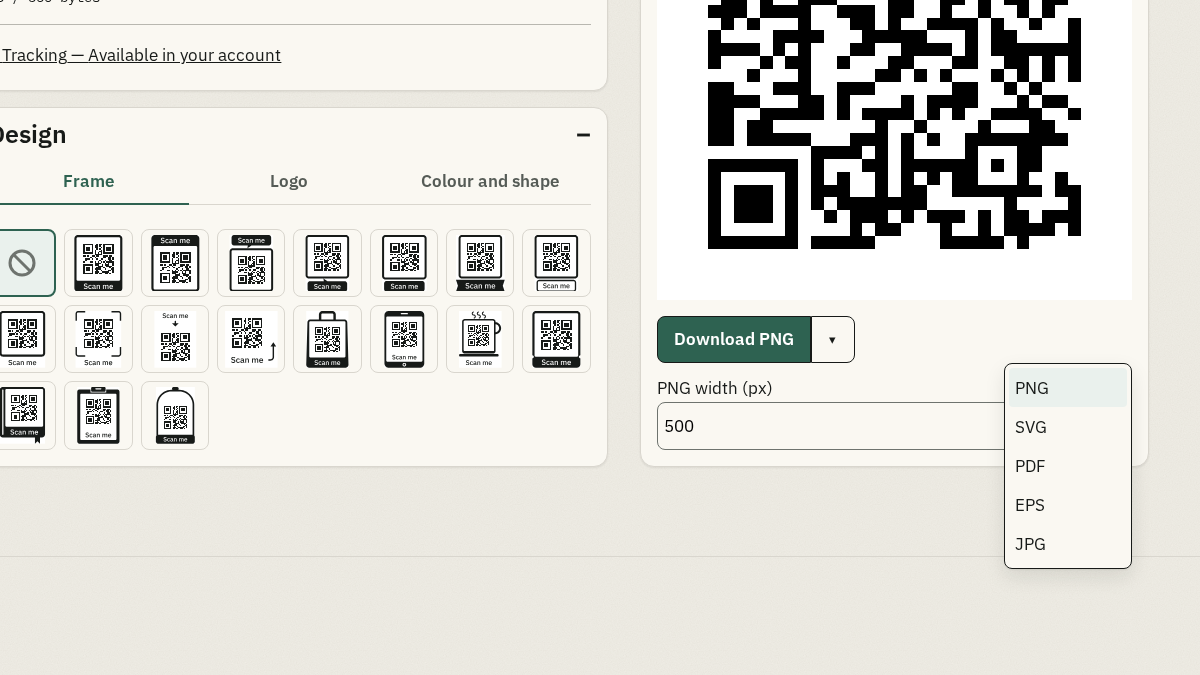
DurableQR offers PNG, JPG, SVG, PDF, and EPS output for static QR artwork. The right choice depends on the surface, the printer, and whether the artwork needs a transparent background.
Use the preview and the format notes together. A file format does not replace a test print at the size you will use.
Choose the format
PNG and JPG are raster images with a pixel width. SVG, PDF, and EPS are suited to workflows that keep vector artwork or a physical size.
- Choose PNG or JPG for a raster workflow or quick image placement.
- Choose SVG, PDF, or EPS when the print workflow accepts vector artwork.
- Set the requested size and inspect the rendered preview.
- Make a test print at the final physical size before the full run.
Know the format limits
PNG, JPG, SVG, PDF, and EPS are not interchangeable in every design. Transparency is preserved by PNG and SVG. Module styles other than square are available only in PNG and JPG, and some logo or frame choices are format-specific.
Check the print result
Print a sample on the same material and at the same size as the final job. Scan that sample with the intended phone or reader, and check the destination before approving the whole run.
Frequently asked questions
Which QR format should I use for a print shop?
Ask the printer which vector or raster input they accept. SVG, PDF, and EPS can suit vector workflows; PNG and JPG suit raster workflows. Confirm with a test print.
Which formats preserve transparency?
PNG and SVG preserve transparency in the supported workflow. JPG has no transparent background, and PDF or EPS settings can impose their own output constraints.
Does a vector file guarantee a successful scan?
No. Scanability still depends on contrast, design choices, physical size, material, lighting, and the reader. Use the preview and a real test print.