QR how-to guide
Adding a frame and call to action
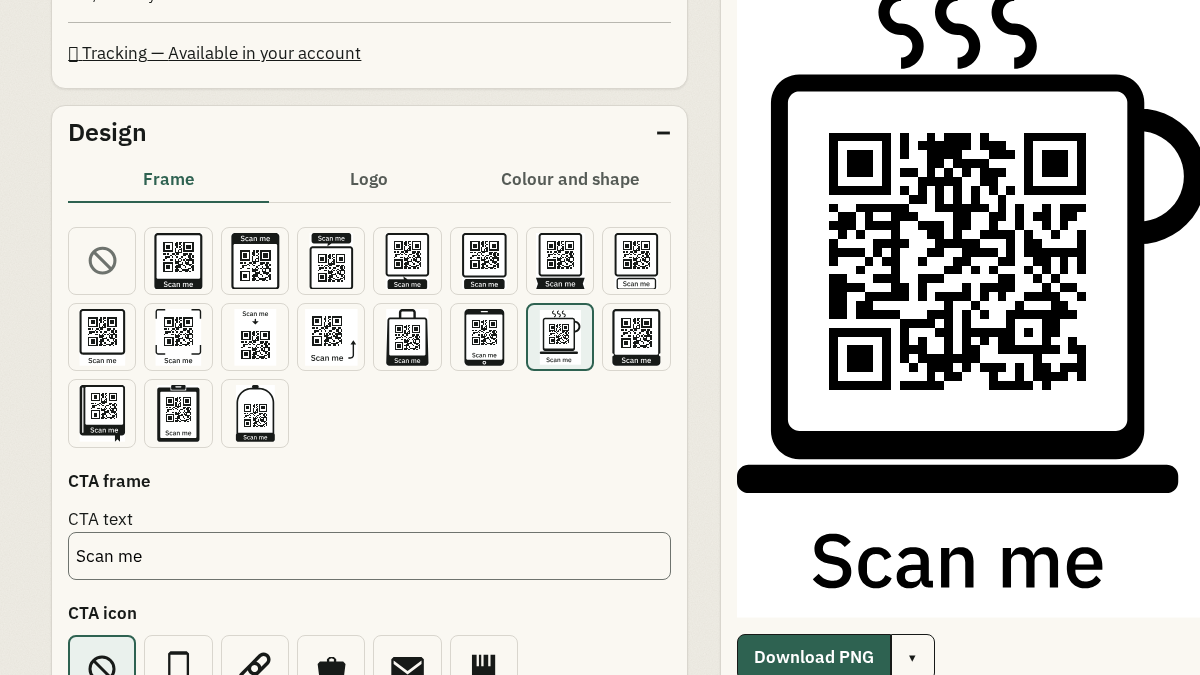
A frame can give a printed QR symbol context, such as a short instruction to scan. The generator offers a catalogue of supported frames; it does not accept arbitrary frame scripts.
Keep the call to action legible and within the control limits. The selected frame, colours, and output format work together.
Choose a frame and CTA
Select a supported frame, enter a short call to action, and use the live preview to see how the text sits with the symbol.
- Open the frame controls in the generator.
- Choose one of the supported frame shapes.
- Write a call to action of 1–20 supported characters.
- Check the preview and download only after the frame is valid.
Check frame and text contrast
The CTA text and frame colours need contrast of at least 4.5:1 in the editable frame controls. If the colours fail, choose a clearer pair rather than relying on the preview alone.
Preview the complete output
Frames and decorations can have format-specific limits. Inspect the rendered preview in the format you plan to print, then run a physical scan test on the finished material.
Frequently asked questions
How long can the frame call to action be?
The frame control accepts 1–20 supported characters. It also rejects unsupported characters and text with a leading or trailing space.
Can I use any frame design?
No. Choose from the supported frame catalogue shown by the generator. The available frame and decoration choices can depend on the output format.
Why is my frame CTA rejected?
The text may be outside the 1–20 character range, contain an unsupported character, or fail the required colour contrast. Adjust the text or colours and check the preview again.