Machine translation without native-speaker review. The English version is binding. · português English
QR how-to guide · português
How to scan a QR code · português
Most iPhone and Android phones can scan a QR code from the built-in camera. You do not need a DurableQR account to scan a code. · português
The steps below describe the phone-side workflow. The example illustration is a guide asset, not a claim about every camera or operating-system version. · português
Use the system camera · português
Open the regular Camera app on an iPhone or Android phone. Hold the phone so the whole symbol is inside the frame and keep the lens parallel to the printed surface. · português
- Open the Camera app or the QR scanner provided by the phone. · português
- Aim at the whole symbol and keep the phone still for a moment. · português
- Tap the notification or banner that shows the recognized link. · português
- Read the address and open it only when you recognize the destination. · português
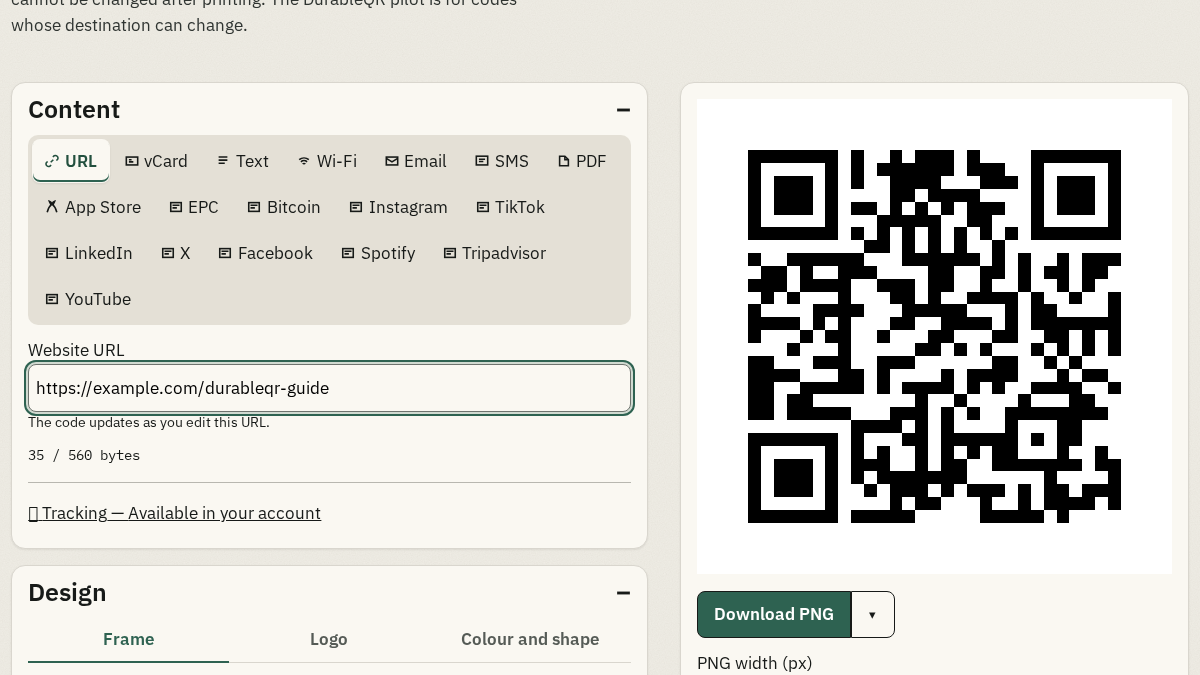
Check the recognized address · português
A QR scan can open a web address, an email draft, a text value, a contact, or Wi-Fi details. Check the domain and the action shown by the phone before continuing. A scan prepares an action; it does not send an email or SMS by itself. · português
If the camera does not recognize it · português
Move away slightly, clean the lens, reduce glare, and try an even, well-lit view. A small or blurred print can be difficult for a phone to read. If the problem continues, try another camera or check the original file and print. · português
Frequently asked questions · português
Do I need an account to scan a QR code? · português
No. Scanning uses the phone and the action encoded or linked by the symbol. An account is only needed to manage a dynamic code. · português
Should I open every link shown after a scan? · português
No. Read the recognized address and continue only when you recognize the destination and expected action. · português
What if the code is hard to scan? · português
Try a steady view with the whole symbol visible, less glare, a clean lens, and better light. Also check the physical print and the source file. · português